Create Printables on Your Phone + 3 Free Downloadable Designs
Studio makeovers and renovations have been a recurring theme here lately — from the kitchen redo to living room updates. Once the decorating momentum starts, it’s hard to stop, so I’m continuing the trend with a small art project for the refreshed workspace and desk area. I’m hoping to share the finished reveal by the end of the month or early next month.
I partnered with Adobe Document Cloud to showcase the free Adobe Scan app and how you can create printables right from your phone. Using the app I made three simple printable pieces to hang in the newly decorated space. You can download the prints below or follow the step-by-step guide to create your own using a mobile device — no desktop software needed.
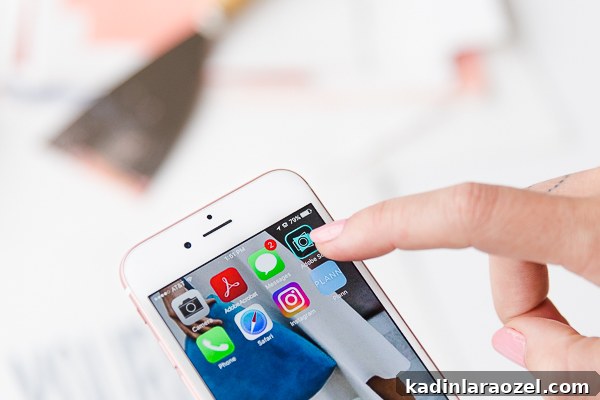
If you haven’t tried Adobe Scan, it’s a free app on iOS and Android that turns photos or scanned documents into clean, shareable PDFs. It also includes text recognition (OCR), so you can search inside scanned files for words or phrases — handy if you keep a lot of receipts, notes, or inspiration boards on your phone.
Adobe Scan is versatile: it’s great for receipts, moodboards, quick notes, and for today’s purpose — making printables. The app automates much of the cleanup so you get crisp, printable PDFs without needing a computer.
How to Make Printables Using Your Phone
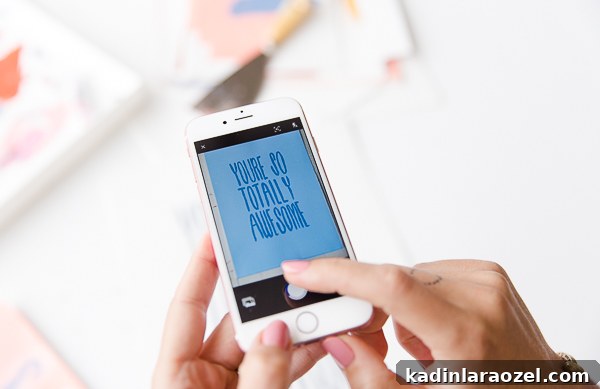
To create a printable from new or existing artwork, open the Adobe Scan app and photograph the piece you want to convert. The app detects the document area with a translucent blue rectangle and captures the image automatically.
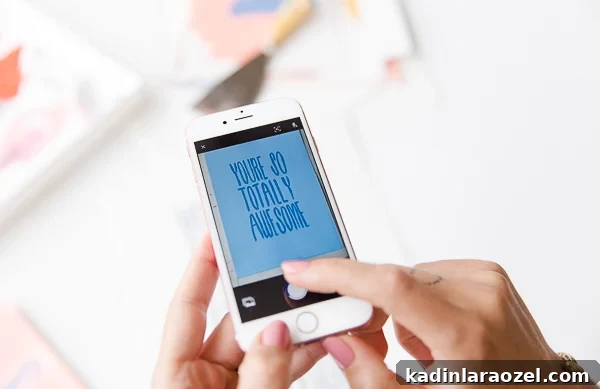
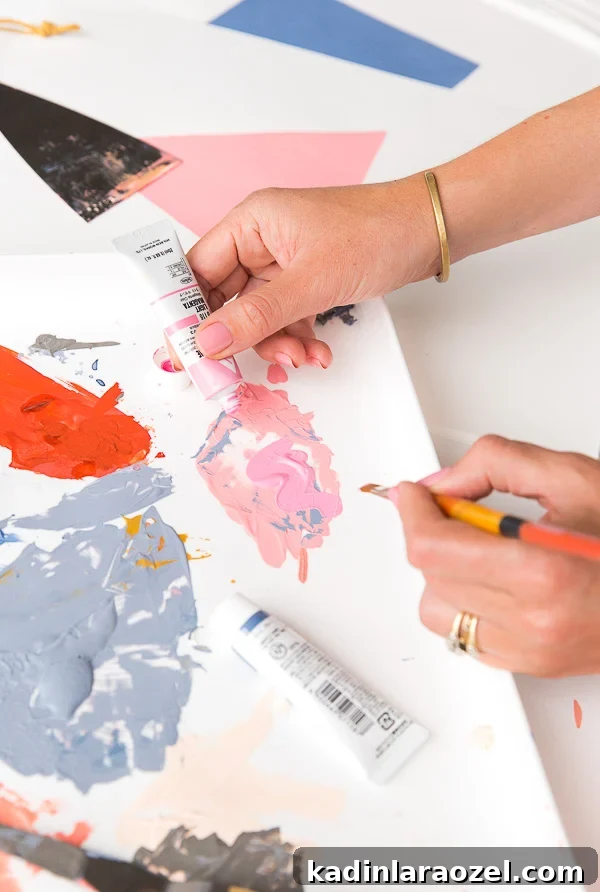
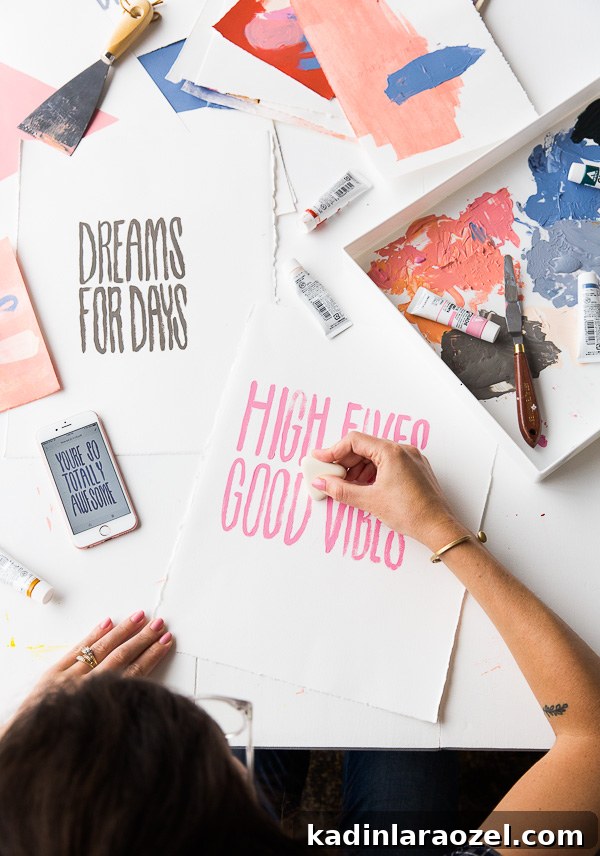
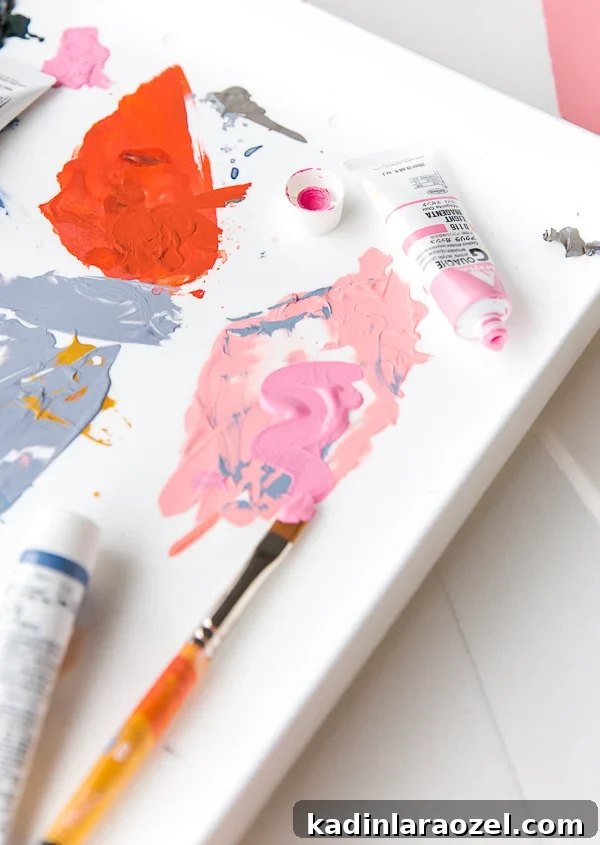
I had my friend Cori hand-paint phrases on paper and then captured each piece in the app to make printable PDFs. While she worked on lettering, I painted small abstract pieces that you can see in the photos. It’s been fun getting back into painting again.
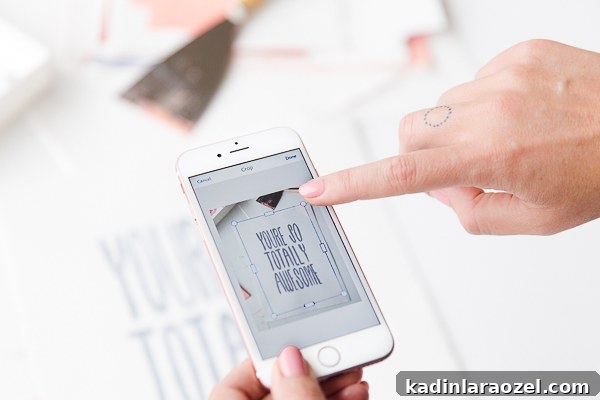
After the app captures your image, it applies an automatic color cleanup that whites out backgrounds and sharpens contrast — an especially helpful feature for printables. You can further crop the image, revert to the original photo if you prefer, or tweak the auto adjustments until it looks right.
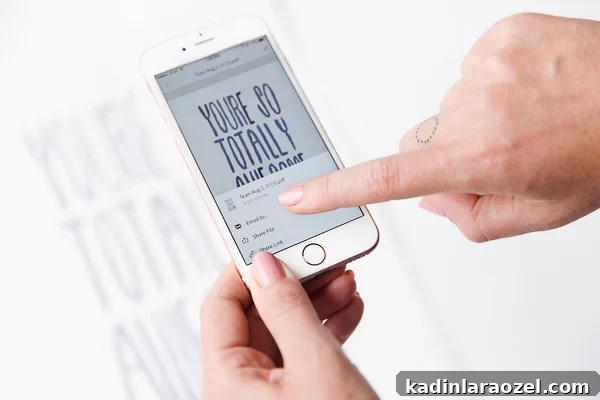
When you’re happy with the result, tap Save PDF (top right). From there you can email the PDF to yourself, share it via text, print directly from your phone, or generate a shareable link. It’s fast and straightforward.
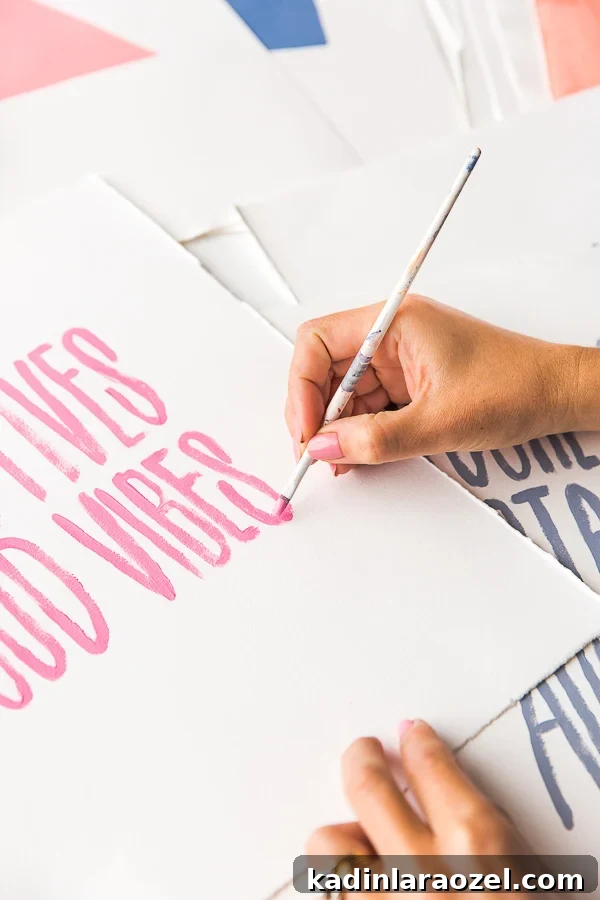
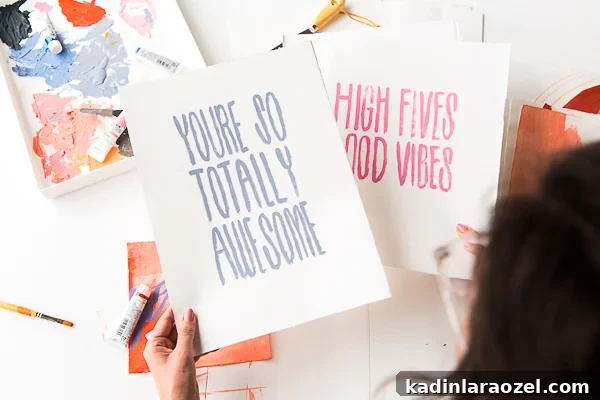
The PDFs I emailed to myself after saving are the exact files I made available for download below. I was impressed with the quality considering I did everything on my phone — and my phone is more than a year old, so you don’t need the latest camera to get great results.
Full disclosure: after finishing the post content, I kept making printables with the app. It’s that easy and fun — I might be a little hooked.
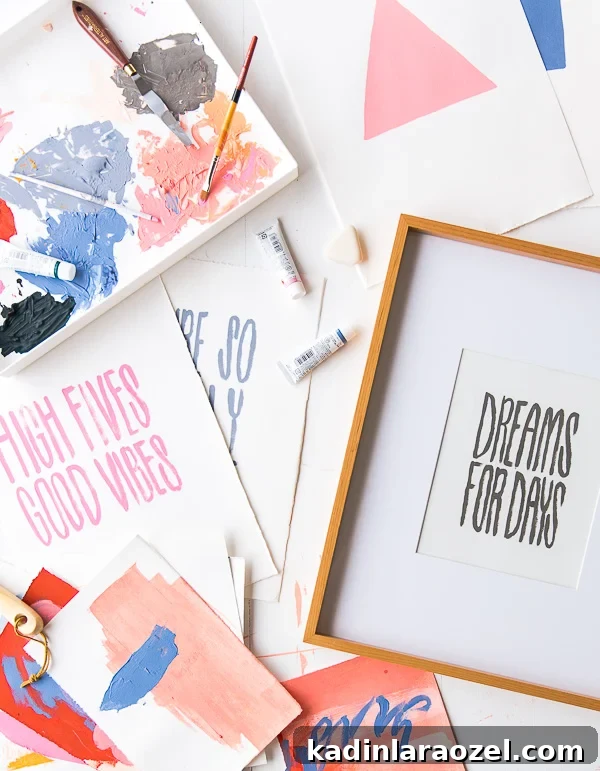
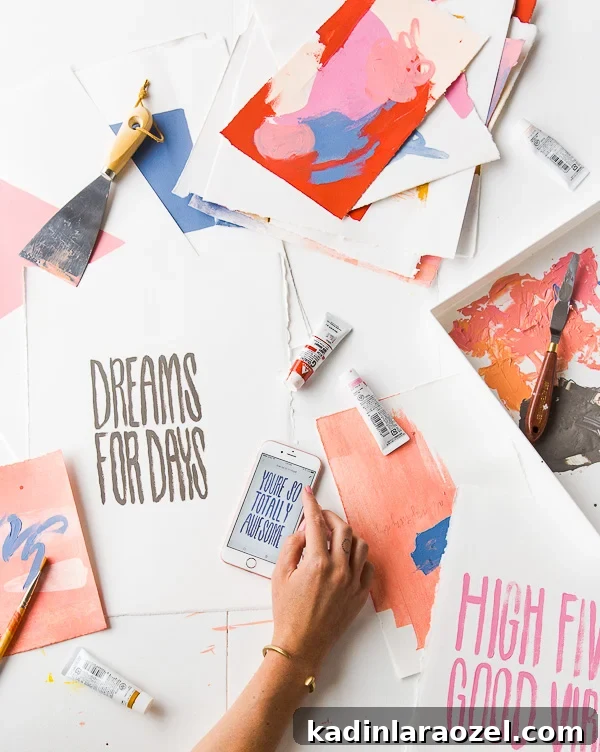
Click here to download High Fives Good Vibes.
Click here to download Dreams For Days.
Click here to download You’re So Totally Awesome.
Which print is your favorite? Will you try Adobe Scan to make your own mobile printables?
—
This post is in partnership with Adobe Document Cloud. All opinions are my own. Thank you for supporting the brands that help keep Paper & Stitch running.